
Security Configuration
Installation Instructions
Please select one of the below options
1 Flashing GrapheneOS CLICK TO VIEW INSTRUCTIONSCLICK TO HIDE
-
Step 1
Enable Developer Mode
On a stock Pixel:
- Settings → About Phone → Tap Build Number 8 times
-
Step 2
Enable OEM Unlocking
- Settings → System → Developer Options → Enable OEM Unlocking
If OEM Unlocking is greyed out:
- Connect to Wi-Fi
- Reboot the phone
- Wait 5–10 minutes
-
Step 3
Power Off Device
- Power the device off completely
-
Step 4
Enter Fastboot Mode
- Hold Volume Down → Press the Power Button while holding Volume Down
-
Step 5
Open GrapheneOS Web Installer
-
Step 6
Unlock Bootloader
- Connect phone to PC via USB → Click Unlock Bootloader
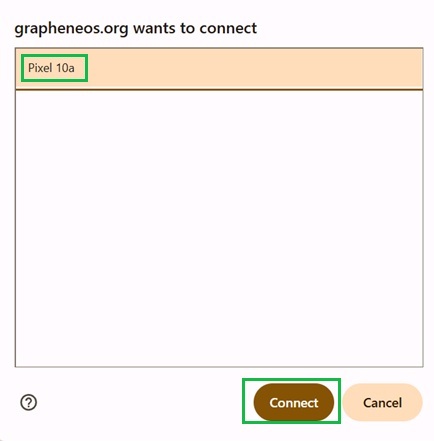
- Select "Pixel" on your browser pop up when prompted → Click Connect
-
Step 7
Install GrapheneOS
- Click Download Release and wait for completion
- Click Flash Release and wait for completion
-
Step 8
Lock Bootloader
- Click Lock Bootloader on the Web Portal.
- Press Volume Down to select Lock Bootloader → Press Power Button to confirm
GrapheneOS is now installed.
2 Initial Setup (Start here if you have GrapheneOS) CLICK TO VIEW INSTRUCTIONSCLICK TO HIDE
-
Step 1
Factory reset the device
Completely wipe the device back to the start up page
-
Step 2
Complete Initial Setup
Power device on and proceed through the GrapheneOS setup.
Important:
- Connect to a Wifi
- Skip setting a PIN for now. Do NOT set a password
- Security Preview Releases - Leave Enabled
- On the last set up page, if there is option for Disable OEM Unlocking - Leave default setting. We want it ticked so that it does disable OEM unlocking
-
Step 3
Re-enable Developer Mode
- Settings → About Phone → Tap Build Number 8 times
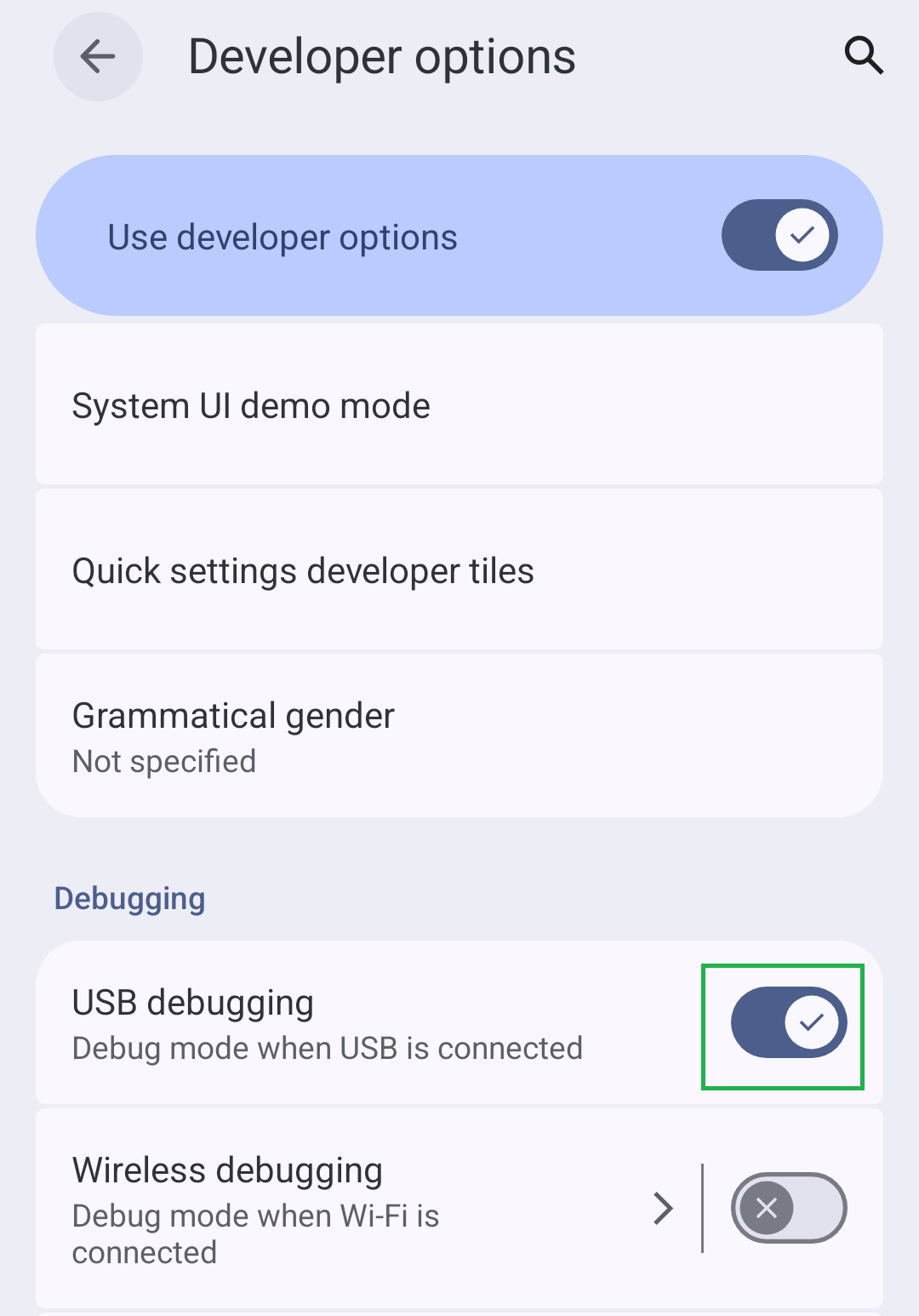
- Settings → System → Developer Options → Enable USB Debugging
-
Step 4
Enable eSIM Support
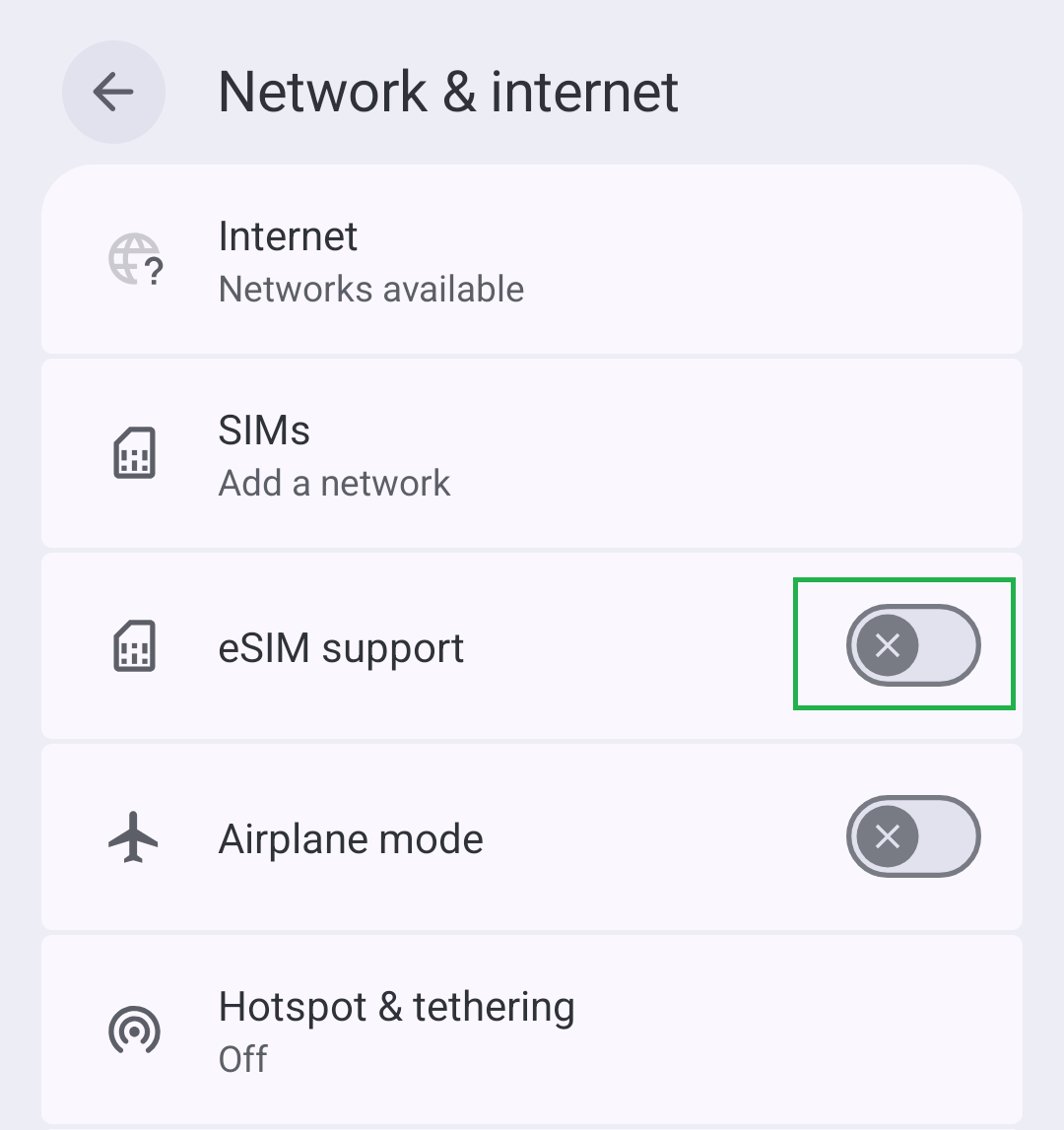
Settings → Network & Internet → Enable eSIM Support
Device will Reboot
3 Flashing Security Suite CLICK TO VIEW INSTRUCTIONSCLICK TO HIDE
-
Step 1
Validate License
- Enter your License Key and Validate.
-
Step 2
Connect Device
- Connect phone to PC via USB → Click Connect Phone Via USB
- Select "Pixel" on your browser pop up when prompted → Click Connect
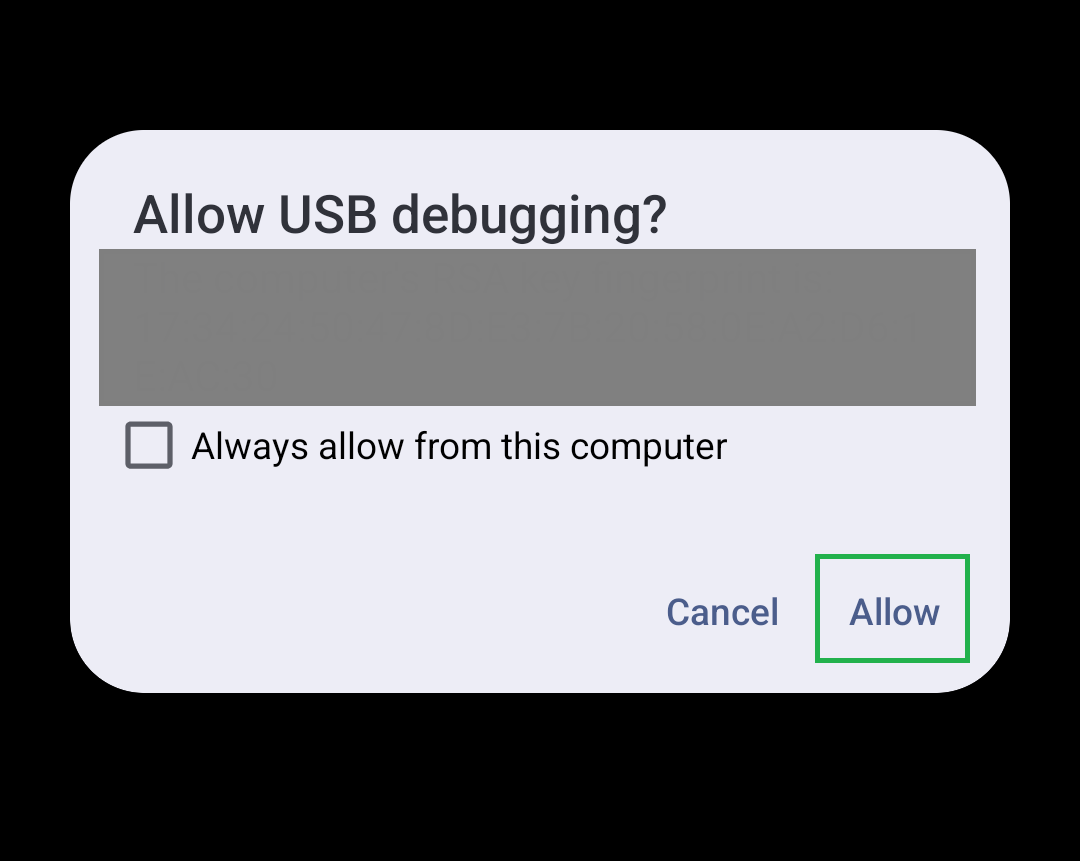
- Unlock the phone screen → Press Allow on the phones ADB prompt
-
Step 3
Select Applications
Choose the APKs you want installed.
Recommended:
- Leave everything selected
-
Step 4
Run Installation
- Press Run Security Install → Wait 5-15 Minutes for this to complete
Requirements:
- Use a high quality USB cable
- Leave the phone on the table untouched
- Do not move or disconnect USB
-
Step 5
Default Password
DEFAULT PASSWORD:
FOR BOTH OWNER AND PRIVATE (User 10) PROFILE IS NOW SET TO
0000
DO NOT TYPE 5555 AS THAT WILL WIPE THE DEVICE.
Please read above - your passwords are defaulted to 0000.
4 OS Configuration CLICK TO VIEW INSTRUCTIONSCLICK TO HIDE
-
Step 1
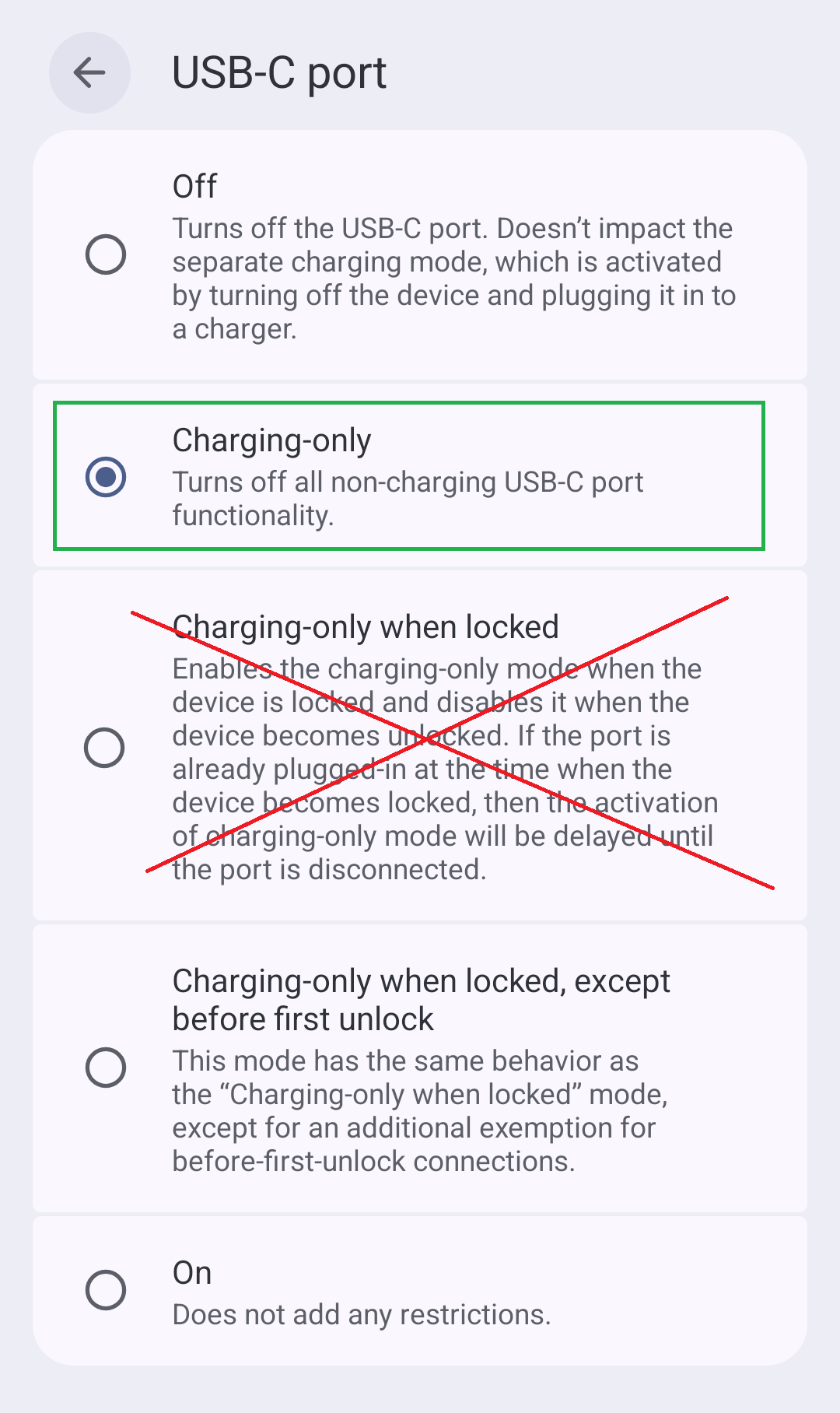
Restrict USB to Charging Only
Settings → Security & Privacy → Exploit Protection → USB-C Port
- Set this to Charging Only (Enter passcode when prompted)
-
Step 2
Set Owner Profile Password
Settings → Security & Privacy → Device Unlock → Screen Lock → Password
- Use a strong password. We recommend 20+ characters.
Examples:
- Monday nights are for $leeping 00
- Hungry jacks is better than kfc@123
- TheSoundOfTheOpera1990!
-
Step 3
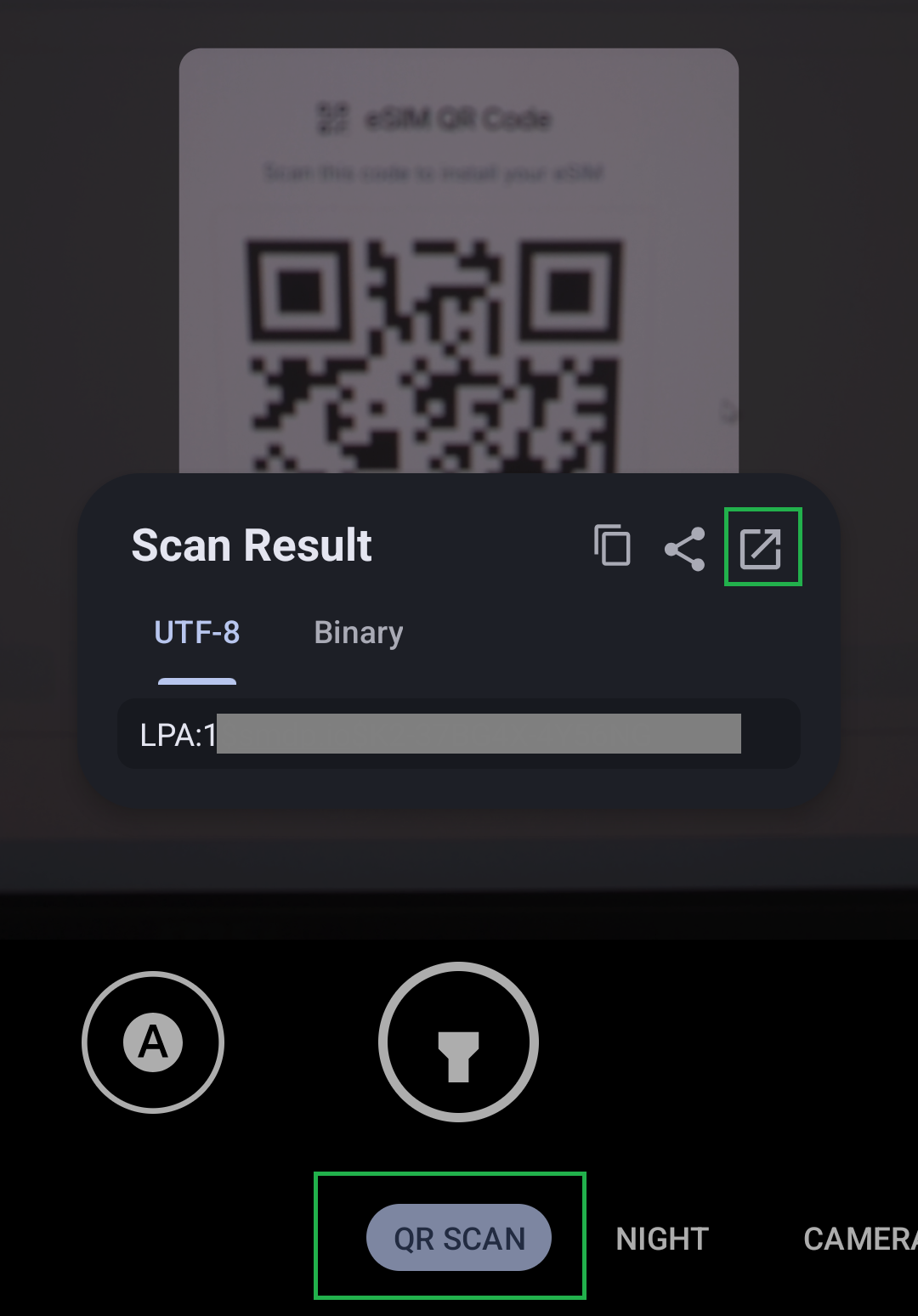
Set Up eSIM
If purchased with an eSIM, follow instructions to add
Open Camera app → Select QR Code at the bottom → Scan the code → Click the arrow → Follow on screen prompts to add eSIM
-
Step 4
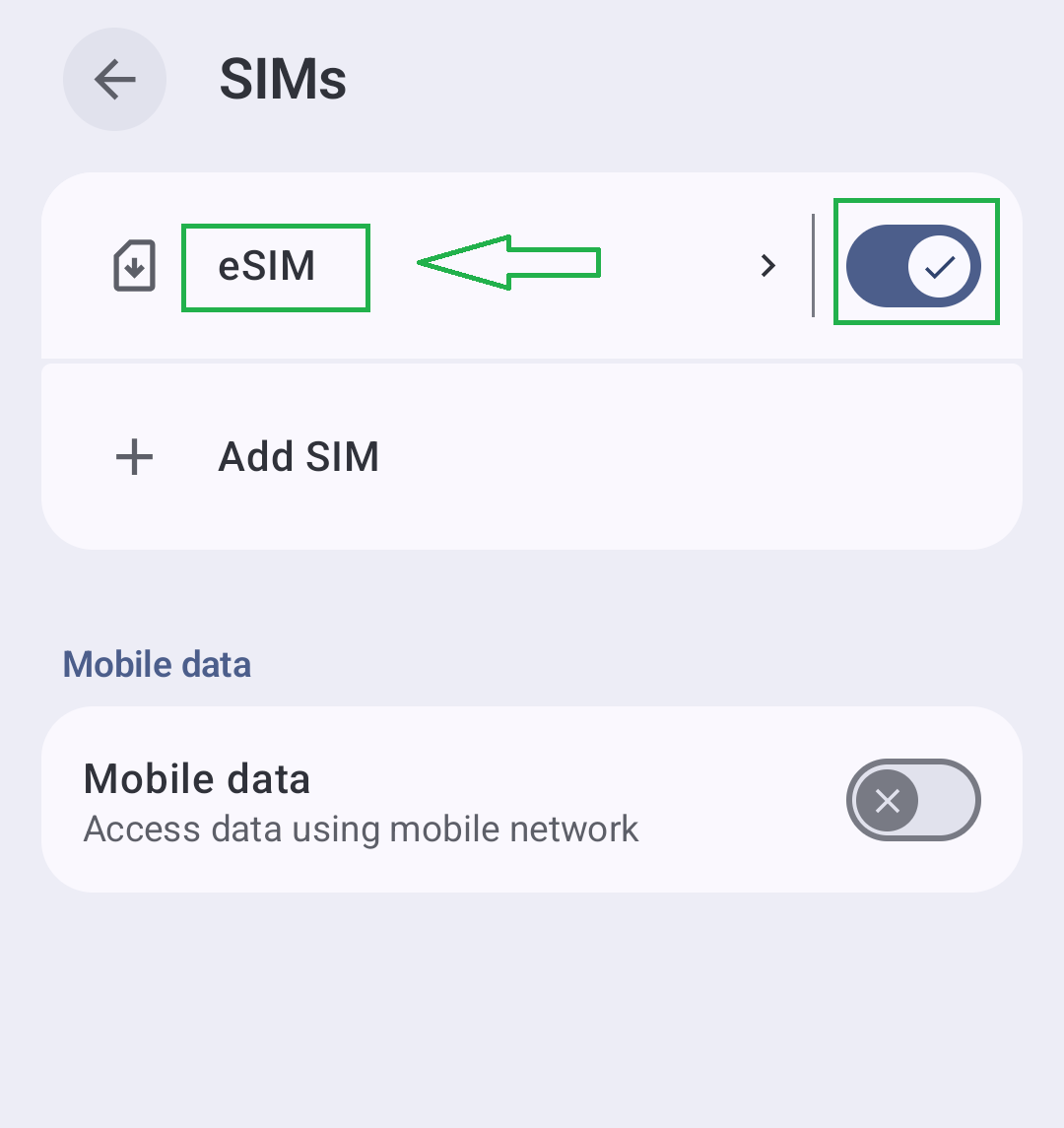
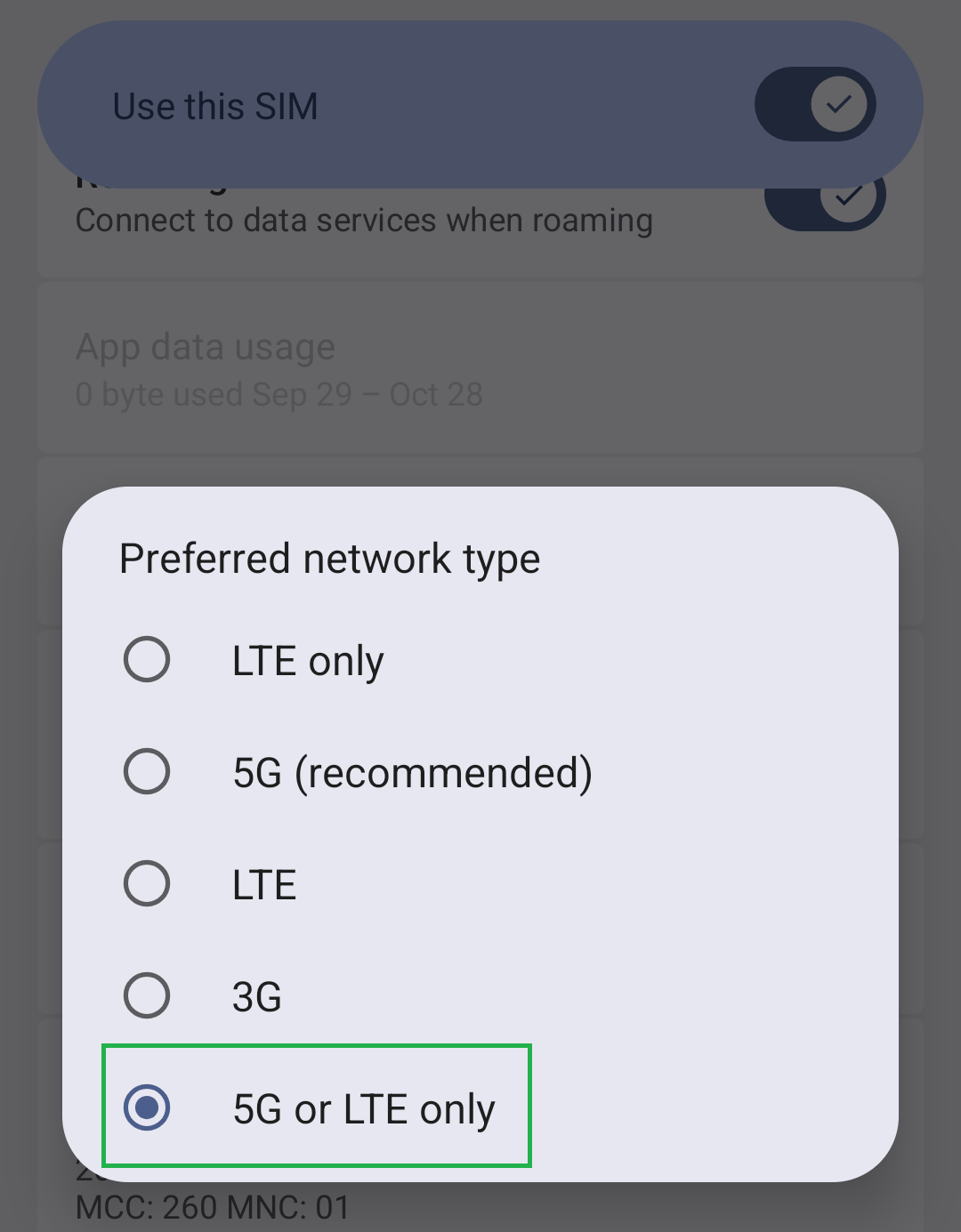
Configure Network Type
Settings → Network & Internet → SIMs → Click on your SIMs Name to access menu
- Scroll down and set Preferred Network Type to 5G or LTE only
5 Private Profile Setup CLICK TO VIEW INSTRUCTIONSCLICK TO HIDE
Note:
- Private Profile will be where all your applications are installed.
-
Step 1
Switch To Private Profile
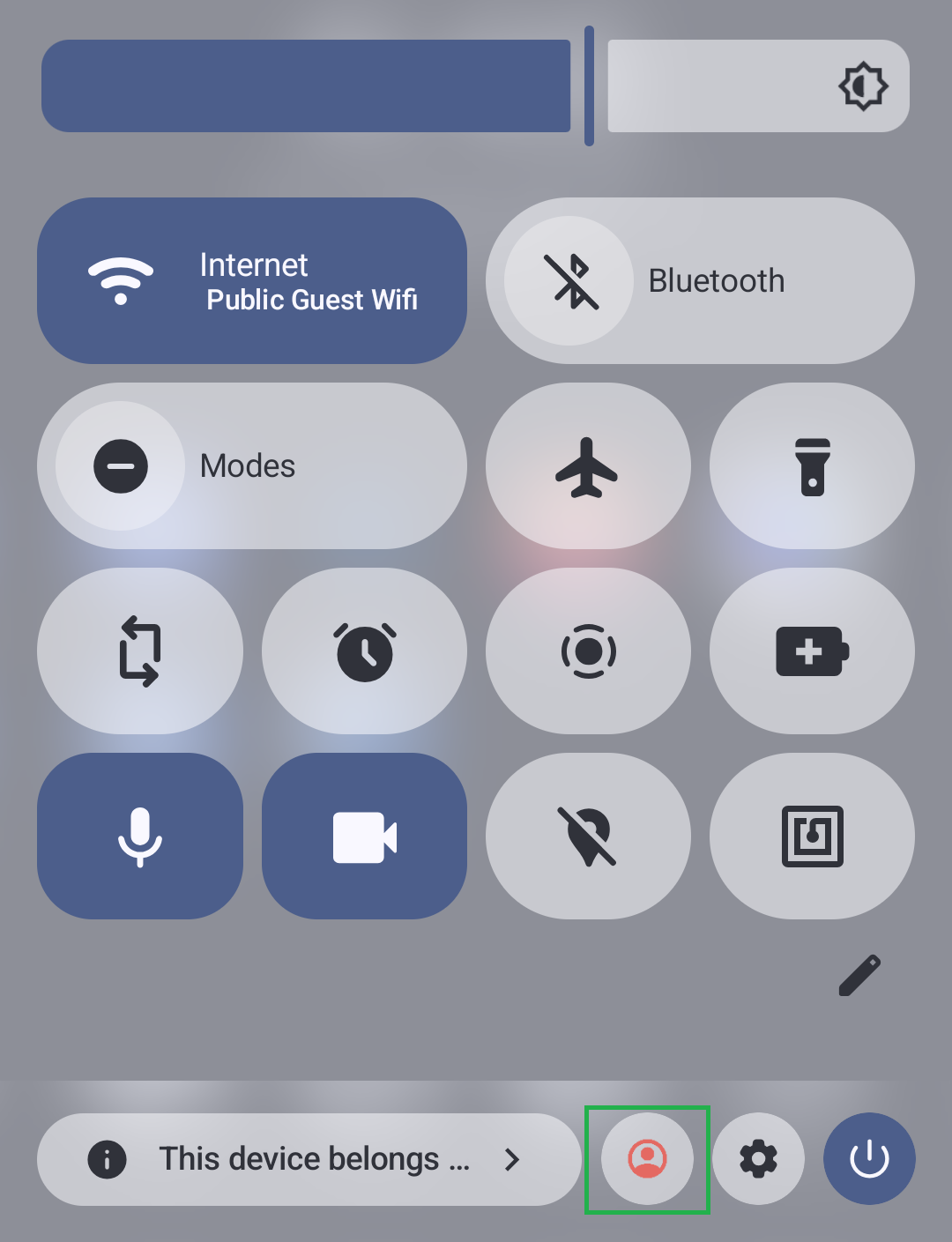
- Swipe down twice from the top of the screen → Press red user icon
- Select Private → Log in using 0000
-
Step 2
Complete Set Up
- Click Next and proceed through the Set up pages
- Click Skip when it asks if you want to restore a backup
-
Step 3
Configure Mullvad VPN
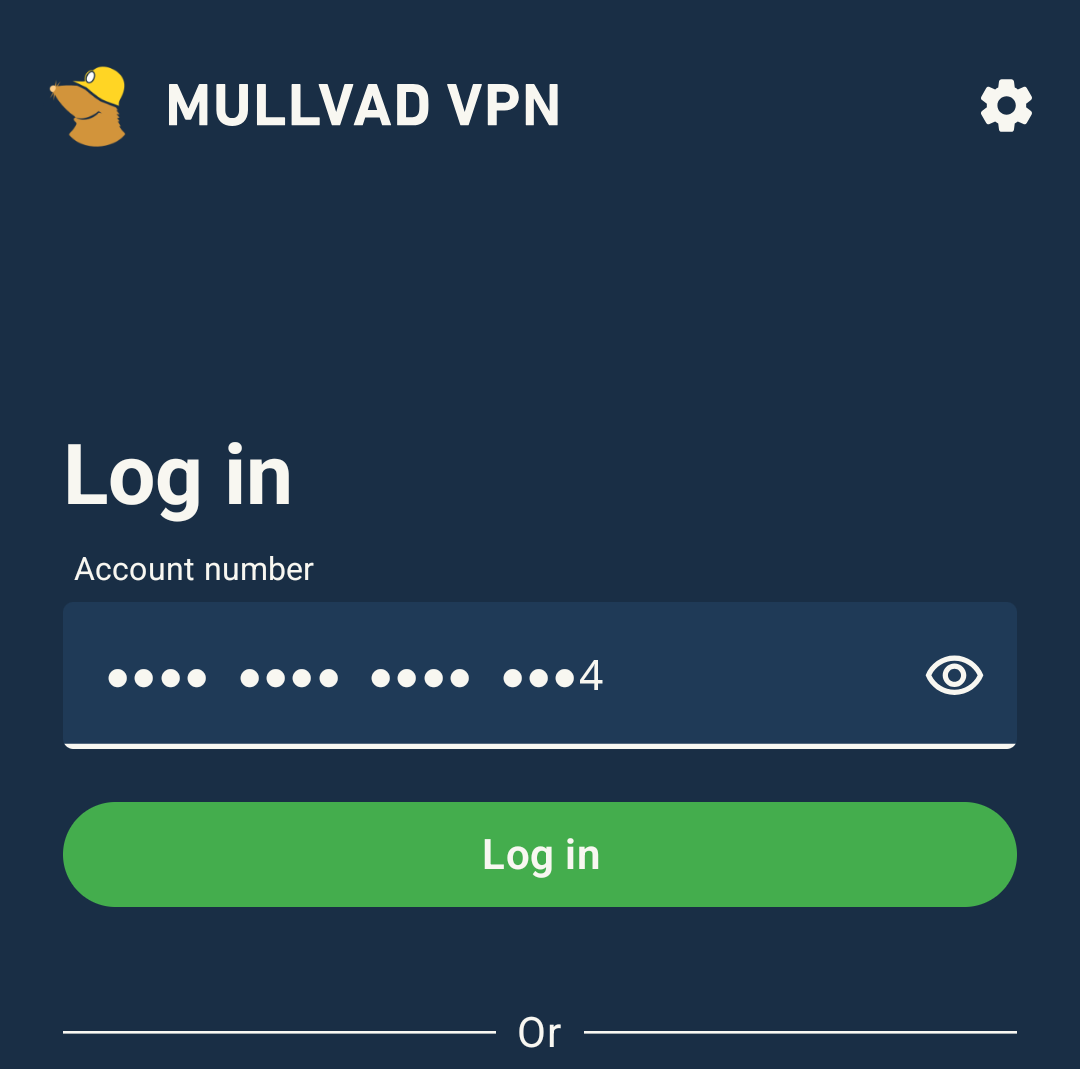
- Open Mullvad VPN and log in using the account provided
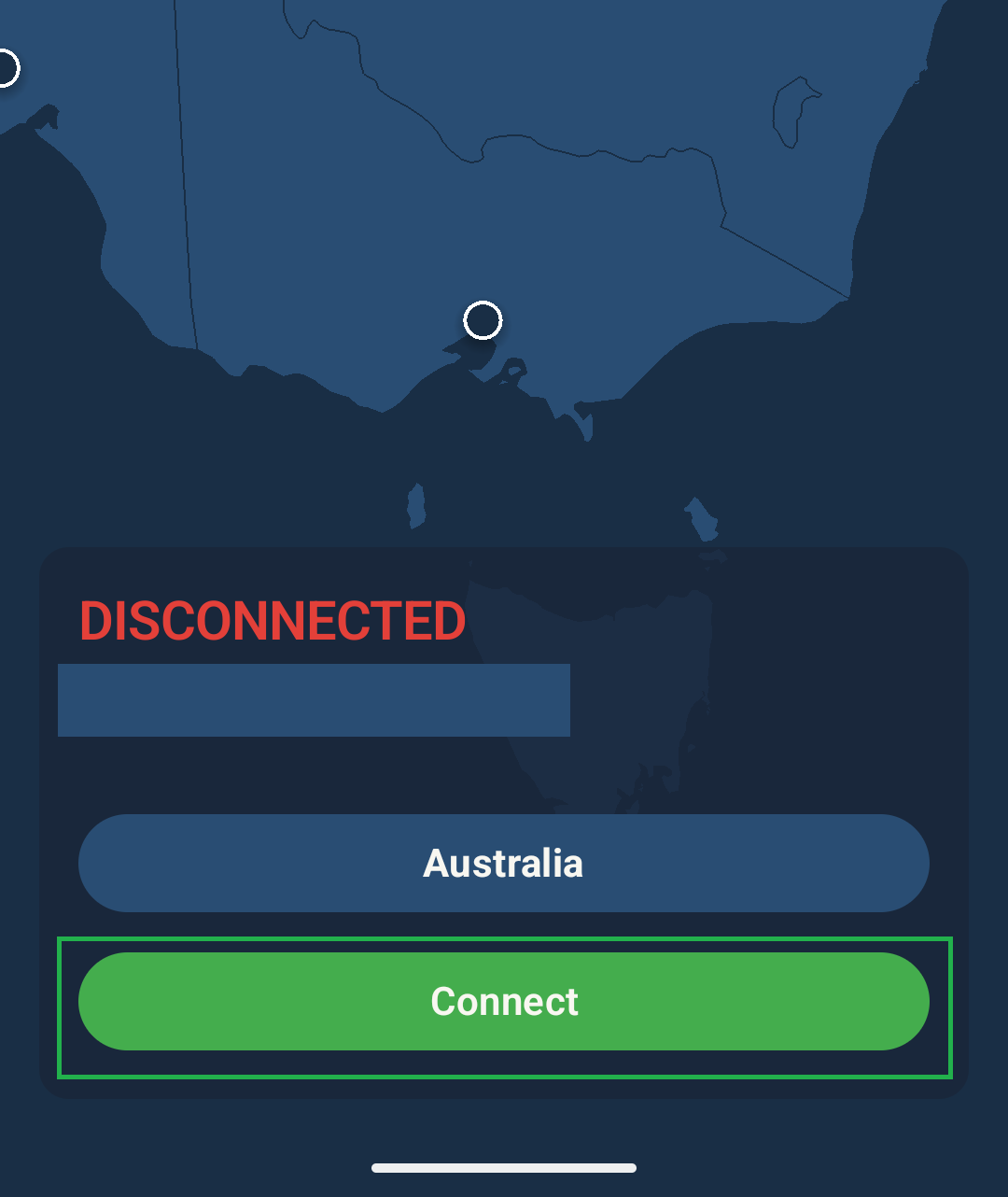
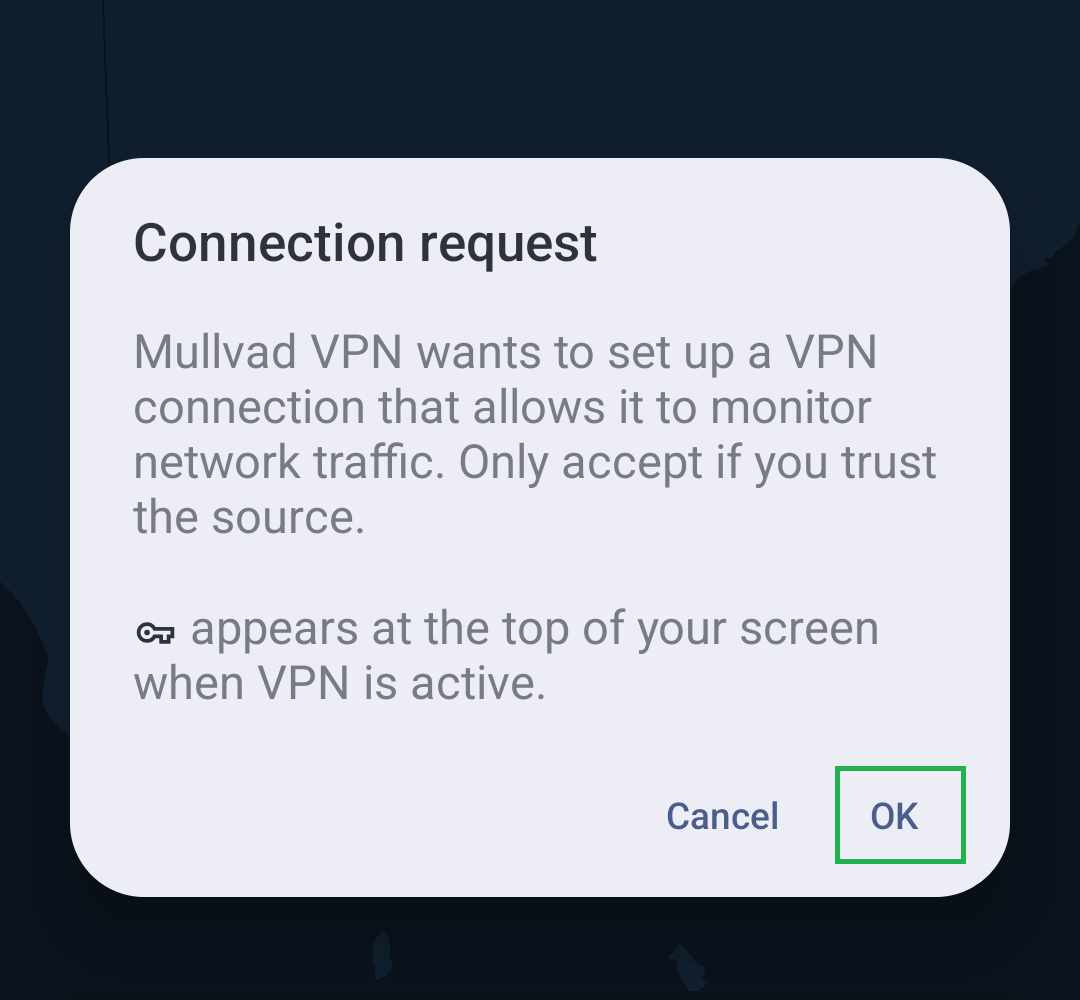
- Click on Connect and OK
-
Step 4
Set Private Profile Password
Settings → Security & Privacy → Device Unlock → Screen Lock → Password
- Use a strong password. If you are forgetful, you can use the same password you set for Owner Profile.
-
Step 5
Set Fingerprint Authentication
Settings → Security & Privacy → Device Unlock → Fingerprint → Add Fingerprint
- Once fingerprint is set up, scroll down to the new option labelled Enable Second Factor PIN → Set an 8 digit PIN for fingerprint authentication
-
Step 6
Return To Owner Profile
- Hold the Power Button → Select End Session to go back to Owner Profile
6 Security & Wipe Configuration CLICK TO VIEW INSTRUCTIONSCLICK TO HIDE
-
Open Security App
- Scroll up on wallpaper and open the app called System.
- Allow when it asks for Running in Background permissions
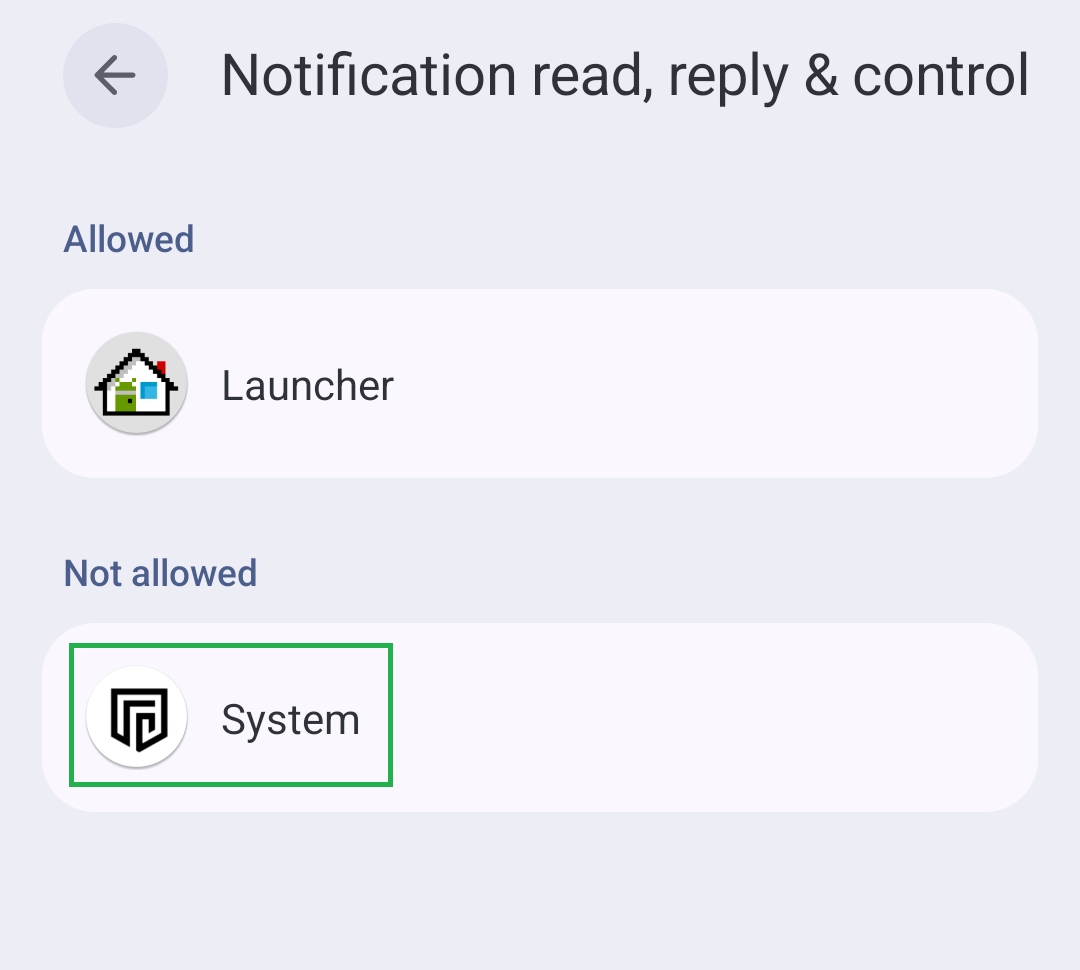
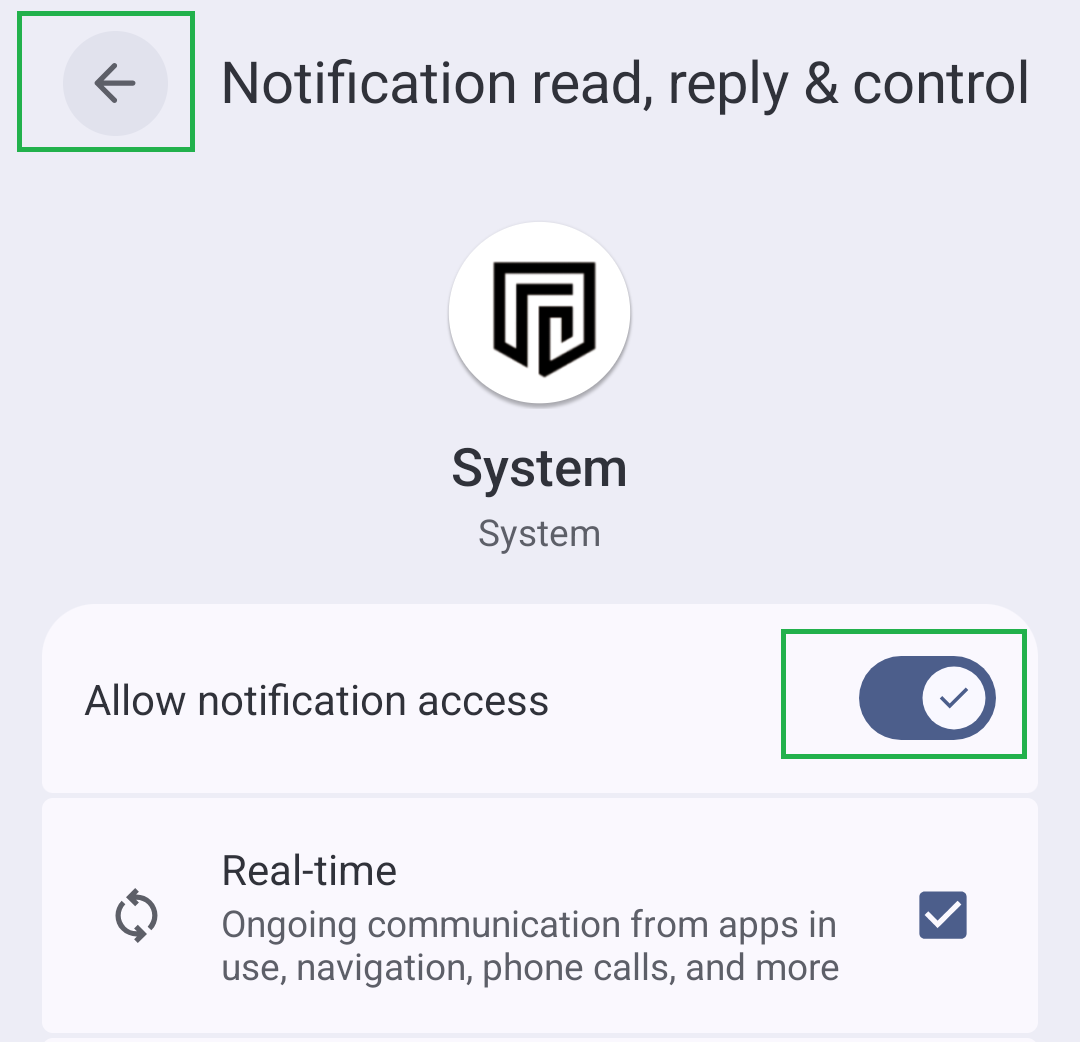
- When the next menu pops up, select System and toggle Notification Permissions on.
- Click the top left arrow twice to go back.
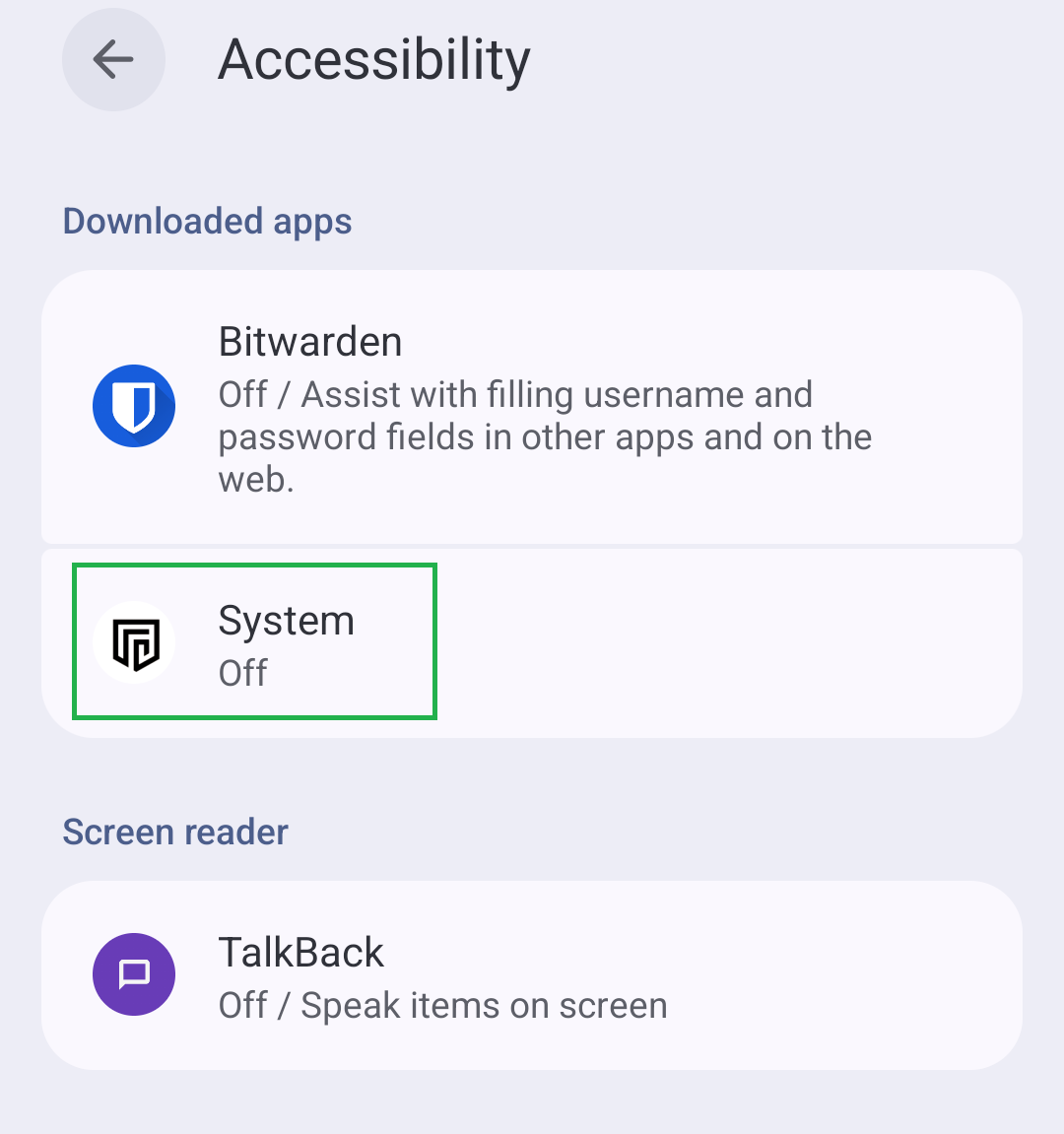
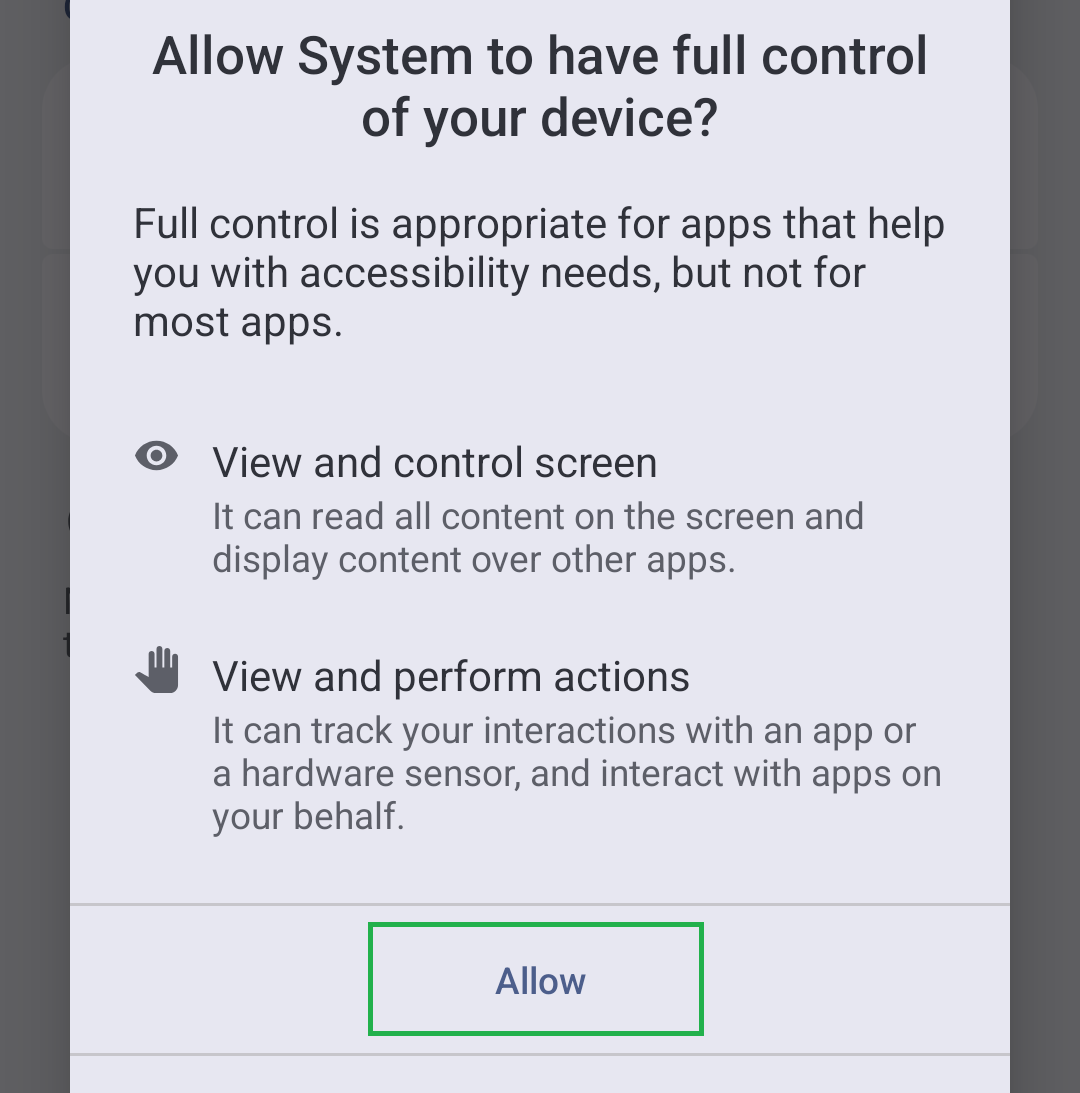
- When accessibility permissions pop up, select System and Allow, then back arrows again.
This permission is only used for Owner Profile remote wipe functionality. It also cannot access your notifications for other profiles.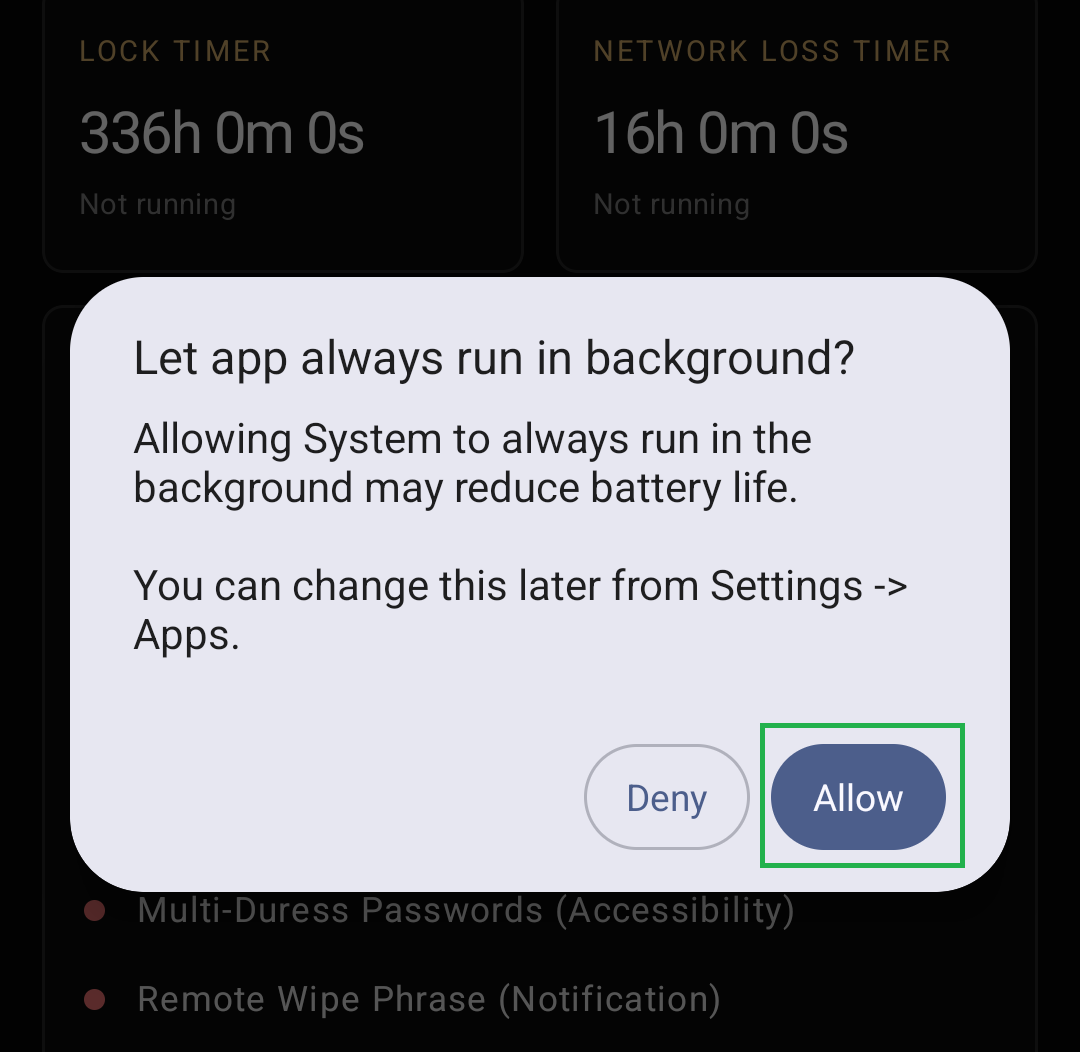
-
Turn Protection On (IMPORTANT)
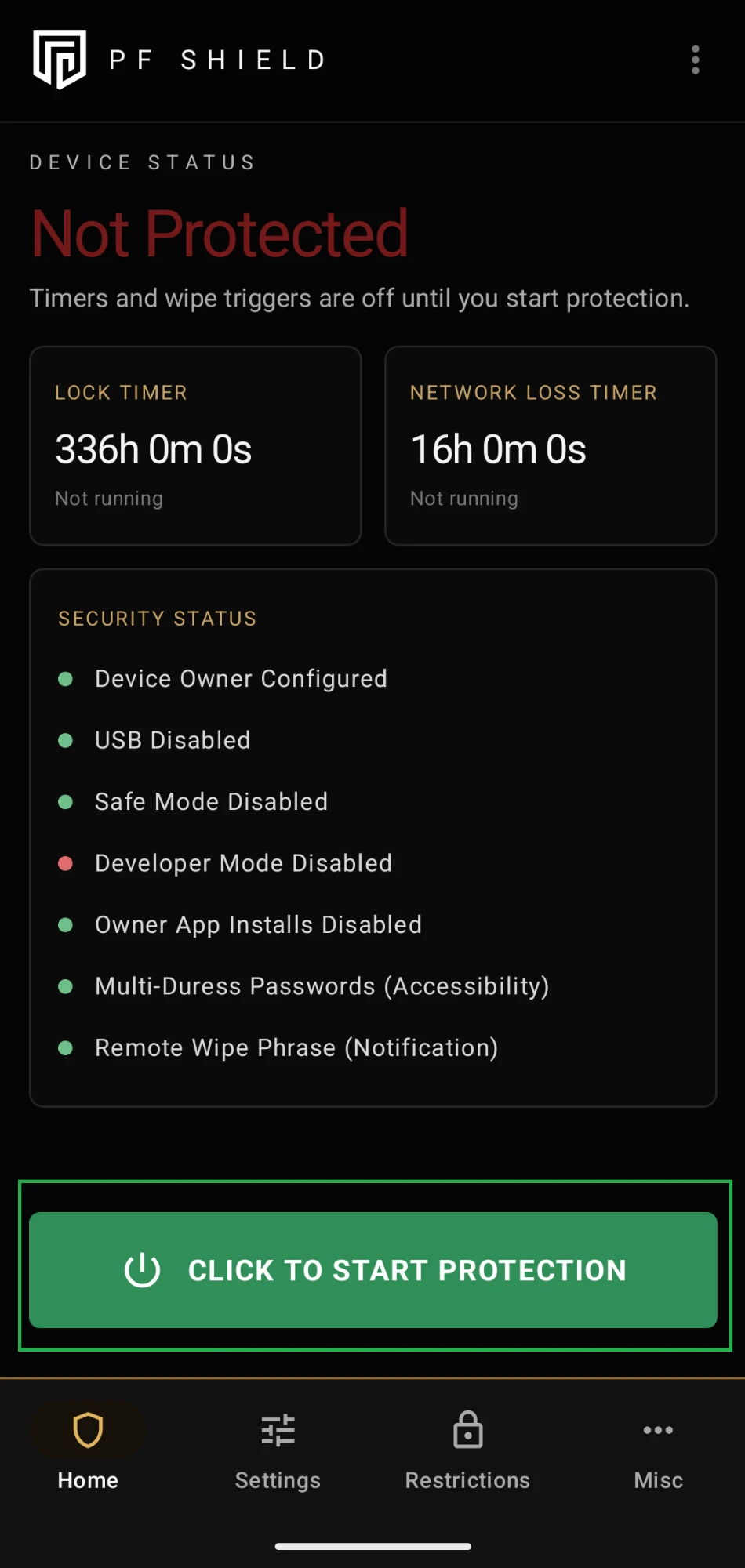
Turn on the protection to begin the app.
Recommended Default Setup
We highly recommend leaving all PfShield settings at their default values.
For default setup, press Start Protection Service and move on to "Usage Guide".
Once you have clicked Start Protection, the screen will momentarily freeze. You will then be taken to the fake launcher page.
Everything on this page is fake, including the settings. Do not click or use anything in this fake launcher.
Once enabled, the Owner Profile itself will automatically reboot every 6 minutes with a fake error message. This is to prevent active exploits. If you are in a secondary profile, this will not occur. If the device does reboot, simply log back in.
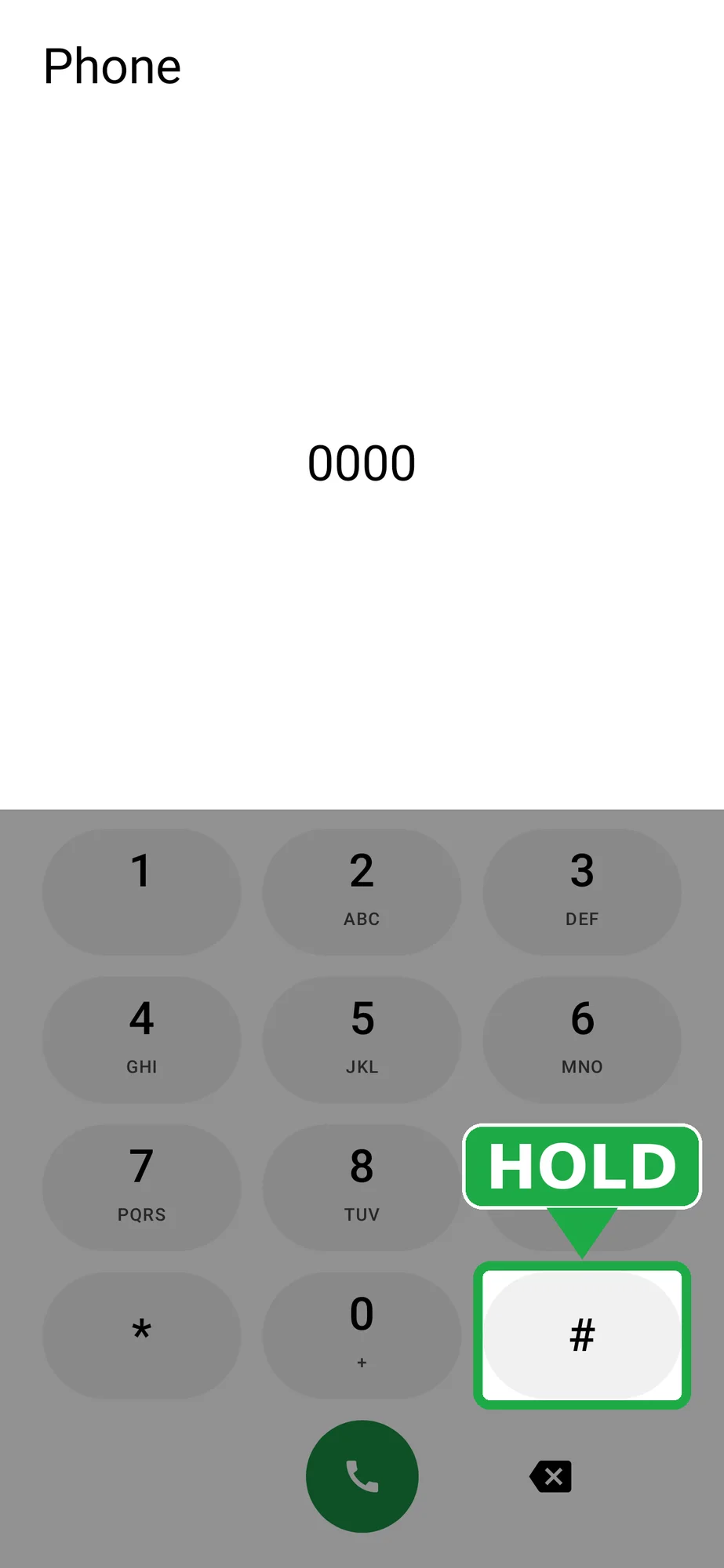
To access the real phone, dial the ADMIN PIN (this is 0000 by default, until you change it in the next steps) and HOLD the Hash (#) key. This is the default Phone Dialer log in; it can be changed to another secret app later in Log in Method.
PF Shield Security Suite
CLICK BELOW TO VIEW CONFIGURATION OPTIONS
THESE CAN BE CHANGED IN ADMIN MENU BY SELECTING WIPE AND SECURITY OPTIONS
Wipes PageConfigure Wiping Mechanisms
Lock Timer
Default:14 Days
This wipes the device if the Owner Profile has not been unlocked within the selected timeframe.
- Do not set this below 3 days
- Private/Other Profile unlocks do not reset this timer.
- Only Owner Profile unlocks reset this timer. Since our auto reboot is set to 4 hours, upon waking up in the morning, phone will automatically have rebooted back into Owner Profile. Unlocking the device will then reset this timer.
Network Timer
Default:16 Hours
This wipes the device if it has no internet connection for the selected timeframe.
- Wi-Fi or mobile data connection will reset the timer
- Logging in to Owner Profile will reset the timer
- Turning the phone off pauses the timer
- The timer only counts while the phone is powered on. This means if you have cellular issues, or are about to fly on a plane or travel in remote areas, simply turn the device off to pause the timer. Upon turning on and logging in, this timer will reset.
Low Timer Remaining Log Out
Default:Enabled
A reminder for whoever is using the phone to log in to the Owner Profile so the timers reset. When the Lock Timer gets to 8 hours left, or the Network Timer to 4 hours 30 minutes left, the phone logs out to the Owner Profile lock screen.
- From a Private / other profile it switches to the Owner lock screen and closes that profile
- If the Owner Profile is open it simply locks the screen
- It happens once per countdown, and never if the timer is already below that point after a restart
Failed Passcode Attempts
Default:10 Attempts
Wipes the device after the number of failed passcode attempts (Owner Profile only).
Multiple Duress Password Wipe
Allow multiple duress passwords at once. This means anyone trying to brute force will hit one of these. Randomized across all devices.
Notification Message Wipe
Default wipe phrase:!forget
The incoming SimpleX or SMS notification must match exactly.
Test phrase:testcode
Power Button Quick Wipe
Default:Enabled
This enables the emergency wipe shortcut described in the Usage Guide. Rapidly pressing the power button will wipe the device.
USB Wipe
Default:Disabled.
This will wipe if the device is connected to a data connection such as a PC or CarPlay. As USB has been completely disabled, this function can be left off. This is much safer than purposely allowing USB to connect to Data/Tools.
Restrictions PageConfigure Restrictions of Features / Hardware
Permanent Restrictions
- Enable Lockdown OS
- Disable Safe Boot
- Disable Physical Media Mounting
- Disable Screenshots and Screen Recording
- Disable Developer Mode
- Disable USB Data Signaling
- Disable USB File Transfer
- Disable Backups (no copy of your data can be kept anywhere a wipe cannot reach)
Screen Timeout 30 Seconds (Owner Profile)
Default:Enabled
The Owner Profile screen turns off and locks after 30 seconds without use, and the screen timeout cannot be changed in Settings.
Other Restrictions
Disable things like Camera, Microphone, NFC, Ultra-Wideband (UWB) and Location Services if you do not plan to use them.
- Disable 2G Networks
- Disable Bluetooth
- Disable NFC
- Disable Ultra-Wideband (UWB) (a short-range radio some phones use for precise location of nearby devices)
- Disable Location Services
- Disable Camera
- Disable Microphone
- Disable App Control
- Disable App Installation
- Disable Installing From Unknown Sources
- Disable Grant Admin
- Disable Outgoing Beam
- Disable Printing
- Disable Wi-Fi Sharing for Admin Networks
- Disable Crash Logs
Misc PageMotion Lock / Lock Screen Decoy / Developer
Anti Snatch Motion Protection
Default Sensitivity:20
Locks the screen after sudden movement such as dropping, snatching, or throwing the device.
- This has an 8 second cooldown
Lock Screen Decoy
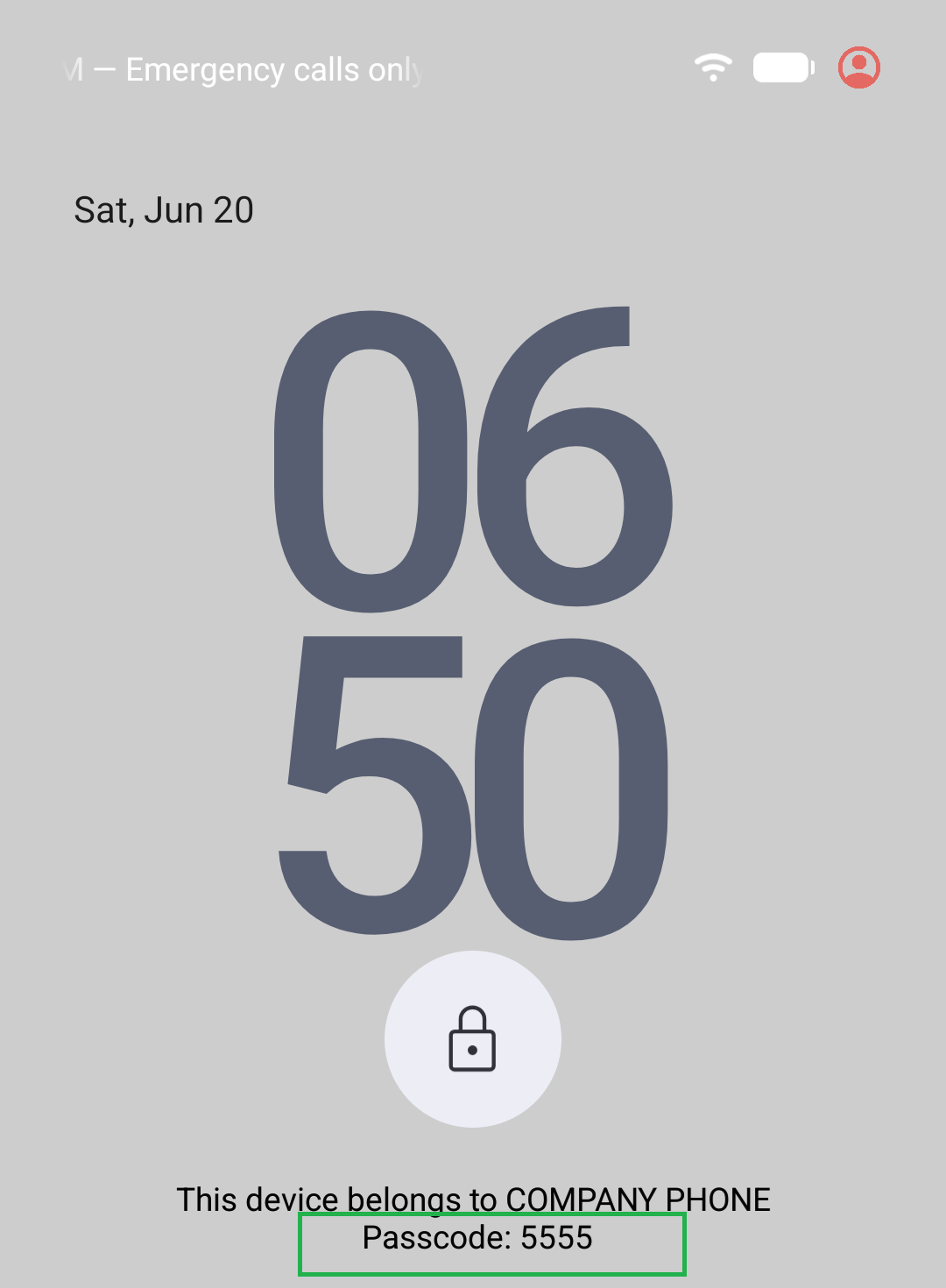
This controls the passcode message displayed at the bottom of the lock screen.
Lock Screen Owner Text controls the owner name.
Lock Screen Passcode Text controls the numbers shown.
This device belongs to The Owner. PASSCODE: 5555
If you change the Duress PIN, you should update the passcode text in PfShield so both values match.
Log in Method PageSecret Admin Menu Log in / Admin PIN Protection
Admin Log in Settings
Default:Phone Dialer
Choose one secret way to open the Admin Menu. Only the chosen one works; the others act like normal apps. Your lock screen password does not change, this is only for the Admin Menu.
- Phone Dialer: type the Admin PIN, then hold the # Hash key.
- Calculator: type the Admin PIN, then hold the + Plus button.
- Secret SMS: open Messaging, Start chat, type the Admin PIN in the text message box, then hold Send.
- Guess the Code Game: open Games → Guess the Code, enter the Admin PIN on an empty row, then hold GUESS.
Pressing (not holding) never counts. The Home page shows which one is set under Secret Log in Method.
Maximum Incorrect Admin PIN Attempts
Default:8 · On
Wrong Admin PINs (not profile passwords) before the Admin Menu locks for good and all other profiles are wiped silently in the background. Can be set from 2 to 10.
Adversary Protection
Default:3 · On
Log in attempts made in the wrong app (for example the Calculator when your log in is the Phone Dialer) are counted. After the set number (1 to 10), all other profiles are wiped silently and the Admin Menu is locked.
Admin Pin Duress
Up to 3 codes (4 to 8 digits). Typed into the phone, calculator, messages app or Guess the Code game, they silently wipe all other profiles (not the phone) and lock the Admin Menu. They do not work on the lock screen.
Exploit Protection PageExploit and Vulnerability Protection
Owner Auto Restart
Default:On · 6 Minutes
Stops the Owner Profile being left unlocked-since-restart (AFU) for long, which is when exploits can reach its data. The phone restarts back into BFU a set number of minutes (2 to 120) after the Owner Profile is first unlocked, whether the screen is locked or not. It only runs once protection is turned on, so it will not interrupt setting the phone up.
- Locking or unlocking again does not reset it
- Switching to a Private / other profile resets and pauses it. Ending that session back to the Owner Profile starts a fresh count
- A "System Error: Moisture detected" message shows for 5 seconds, then the phone restarts
- It never runs before the first unlock, so it cannot cause restarts overnight
Exploit / Vulnerability Protection
- Temperature: Monitor for sudden, extreme temperature changes which may indicate an active exploit attempt and reboot the device.
- Voltage: Monitor for abnormal voltage applied which may indicate an active exploit attempt and reboot the device.
- Wireless Charger: Off by default, as lots of people use wireless chargers daily. However, there are some adversaries who exploit phones using this function. Tick this box to make your phone automatically reboot every time it detects a wireless charger connection.
Travel Mode PageExtra Protection For Control Points and Unfamiliar Areas
Travel Mode
Default:Off
Turn on when passing through control points or workplaces that require higher scrutiny, or when going into unfamiliar areas. Tap the large red OFF button to turn it on, then press Restart when asked to activate it properly. Tap the button again to cancel.
- It turns itself off and puts your normal settings back after the Travel Mode Timer (12 hours by default) if not cancelled
- Settings on this page cannot be changed while it is on
- When it ends, your normal timers carry on with the time already counted (for example a 12 hour Lock Timer with 5 hours already counted on a 6 hour Travel Mode timer has 7 hours left)
- If a Travel Mode timer runs out while Travel Mode is still on (even with the phone switched off), the phone still wipes
- Only one of Travel Mode and High Risk Mode can be on: turning on High Risk Mode ends Travel Mode, and Travel Mode can't be turned on while High Risk Mode is running
Travel Mode Timer
Default:12 Hours
How long the mode lasts once turned on (1 minute to 7 days, for example 30m, 2h or 1d). Afterwards, the mode deactivates and your regular protection settings are re-applied. It counts on the clock, so time with the phone switched off counts too: if it is set to 1 hour and the phone is off for the whole hour, the mode has already ended when the phone starts up.
Automatic Restart
Default:5 Minutes
Restarts the phone every set number of minutes (1 to 60), whether locked, unlocked or before first unlock (BFU). A "System Error: Moisture detected - Phone will power off" message shows for 5 seconds first. From a Private / other profile it switches to the Owner Profile first.
Lock Timer / Network Timer
Default:2 Hours each
Used instead of your normal timers while Travel Mode is on (never longer than your normal setting, and switched on even if you normally have them off).
Remove Fingerprint Temporarily
Default:Enabled
Only your PIN or password unlocks the Owner Profile while Travel Mode is on.
High Risk Mode PageStop Anyone Using The Device For A Set Time
High Risk Mode
Default:Off
Maximum Protection. Disallow anyone accessing this device for specified time. This cannot be cancelled until the timer is up. Use only when necessary.
This cannot be manually cancelled. Useful for when you have to provide device to an adversary for a short timeframe, or if you are getting phone repairs done etc.
Tap the large red OFF button, type okay (capitals don't matter) and press Submit. The phone restarts straight away. If the word is typed wrong, nothing happens and you are asked to type okay again.
- Turning this on disables Travel Mode, as only one of the two can be active at a time
- Your normal Lock Timer and Network Timer settings are never changed
High Risk Mode Timer
Default:1 Hour
This will cause the device to show an error message about Moisture / Water damage and then reboot itself, over and over every few seconds. The rebooting will stop once this timer has elapsed. We recommend setting this to an appropriate value (minutes or hours, for example 30m or 2h, up to 12h). Keep in mind that your no unlock / internet timers will remain active. Please ensure this timer is lower than those values.
Turning The Phone Off
To shut down device (temporarily stop your device from rebooting while timer ticks), hold the volume down button during a reboot. Keep holding until device boots into fastboot mode (A black screen with writing) - Tap volume down until you reach "Shut Down / Turn Off" and select that with the power button. This will turn the phone off.
8 Instructions For Usage CLICK TO VIEW INSTRUCTIONSCLICK TO HIDE
-
Tick Read once you have read this section.
How to Wipe device in Emergency
Click the power button as fast as you can. Clicking this 7-8 times within 2 seconds will cause the device to wipe.
In an emergency, spam the power button non-stop until wipe begins.
Default Duress PIN:
5555
Typing this password on any lockscreen followed by Pressing Enter will cause the device to wipe immediately.
Things To Remember
Auto Reboot Timer
The device will automatically reboot into the Owner Profile overnight or after 4 hours.
Locked Device Timer
This timer will wipe the phone if it is not unlocked for the specified amount of time - default is 14 Days.
Network Loss Timer
This timer will wipe the device after the configured period without internet connection - default is 16 Hours.
VPN Code
Do not share or reuse the VPN code elsewhere. If you need a new VPN code, contact support.
Notes Storage
For notes, use Standard Notes.
Remote Wipe Via SimpleX / SMS (Optional)Wipe the device by sending it a message
-
Step 1
Set Up SimpleX On Pixel
- Open SimpleX on the Owner Profile (You can do this by accessing Admin Menu → Android System Settings → Apps → All Apps → SimpleX → top right corner icon to launch the app)
- Press Get Started
- Enter a profile name
- Create profile
- Set notifications to Instant
-
Step 2
Create Public Address
- Select Let Someone Connect To You
- Select Create Public Address
- Save the URL or QR code
-
Step 3
Connect From Another Device
- Install SimpleX on another device
- Add the Pixel using the saved URL or QR code
- Send a message
- Accept the chat request on the Pixel
-
Step 4
Test Remote Wipe
Send this test phrase:
testcode
If a notification appears saying test successful, remote wipe is ready.
-
Step 5
Wipe Device Remotely
Send the configured wipe phrase exactly as saved in PfShield.
Default wipe phrase:
!forget
Remote Wipe Limitations
- The wipe phrase must match exactly
- No extra spaces, words, or line breaks
- The device must receive the notification for wipe to trigger
- If the phone has no internet, it will not wipe immediately
Owner Profile Behaviour
- If the phone is unlocked in Owner Profile, it will wipe
- If the phone is locked in Owner Profile, it should wipe once the notification is received
Private Profile Behaviour
- If the phone is in Private Profile, it will not wipe immediately if using SimpleX.
- If using SMS, and you have the SMS option ticked (already enabled by default), the device will wipe immediately on receiving the SMS code.
- If the user ends the session back to Owner Profile, it will wipe once the notification arrives.
- If the phone reboots before the notification is received, the original notification may be lost.
Recommended Remote Wipe Method
Send the wipe message immediately, then send the same wipe message again after 5 hours. This gives the device the best chance of receiving the wipe notification.
You have not marked previous steps with completed - Are you sure you wish to continue?